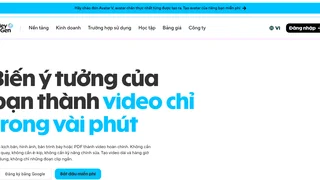
How to Automatically Dub & Localize Any Video in 170+ Languages with HeyGen
Expanding your video marketing or corporate training to global audiences traditionally meant hiring native voice actors, renting recording studios, and manually syncing audio tracks for every target country. HeyGen AI changes this workflow completely. Using its automated Video Translate engine, you can translate, dub, and lip-sync any existing video into more than 175 languages in just a few clicks.
Why Traditional Video Dubbing Is Slow and Costly
Translating video content manually is one of the most resource-intensive tasks in digital marketing. You usually have to transcribe the original audio, hire professional translators, book voiceover artists for each language, and manually adjust video timelines to match new sentence lengths. Beyond high costs, manual dubbing rarely preserves the original speaker's vocal timbre or facial movement. HeyGen solves this problem by pairing AI voice cloning with automated facial re-animation, allowing one speaker to present fluently in dozens of languages.
Step 1: Prepare Your Source Video File
HeyGen produces the cleanest localization results when your original video meets a few basic technical guidelines before upload:
- Supported File Formats: Upload MP4, MOV, or WEBM files up to 500 MB in size or 10 minutes in duration per clip.
- Clear Audio Quality: Ensure the main speaker's voice is distinct and free from heavy background noise or loud music tracks.
- Single Speaker Visibility: Videos featuring a clear, front-facing speaker yield the most accurate facial re-animation and lip-sync alignment.
- Script Preparation: If you have a written transcript, keep it handy for quick proofreading in the editor.
Step 2: Upload Your File and Select Target Languages
Once your video asset is ready, log into your HeyGen workspace and launch the Video Translate dashboard:
- Click Video Translate on the main menu.
- Drag and drop your MP4 or MOV file into the upload dropzone, or paste a direct YouTube or Vimeo URL.
- Set your Source Language (or leave it on Auto-Detect if your video contains multiple dialects).
- Select your Target Languages from over 175 supported languages and regional dialects, including Spanish, German, French, Mandarin, Japanese, and Portuguese.
Step 3: Choose Between Audio Dubbing and Full Lip-Sync
HeyGen offers two translation modes depending on your production goals and credit budget:
- Audio-Only Dubbing: Translates the spoken audio and clones the speaker's voice while keeping the original video footage unchanged. This mode is faster and consumes fewer credits.
- Full Lip-Sync Translation: Translates the voice and re-renders the speaker's mouth movements to match the phonemes of the new language. This provides the most natural viewer experience for social media ads and sales pitches.
- Multi-Speaker Detection: Enable auto-detection if your video features a conversation between two or more people so HeyGen clones each voice individually.
Step 4: Review and Edit the AI Translation Transcript
Before exporting your localized video, use HeyGen's built-in transcript editor to verify accuracy:
- Proofread On-Screen Subtitles: Check translated text lines to ensure specialized industry terminology and product names are translated accurately.
- Adjust Pronunciation and Timing: Edit specific words or substitute alternative phrasing if a translated sentence runs too long for the video frame.
- Customize Captions: Toggle automated captions on or off and customize font styles, background boxes, and text colors to match your brand design.
Step 5: Export and Distribute Your Localized Videos
When you are satisfied with the preview, click Submit to render your translated video assets:
| Export Asset | Best For | Key Advantages |
|---|---|---|
| Localized Video (.mp4) | YouTube, social ads, website embeds | Includes cloned voiceover and optional lip-sync alignment in 1080p or 4K. |
| Subtitle Files (.srt / .vtt) | Video players & accessibility compliance | Provides time-coded subtitle files ready for upload to native video hosts. |
| Audio Track (.mp3 / .wav) | Podcasts and audio guides | Exports clean localized audio voiceovers for standalone audio distribution. |
Credit Consumption and Practical Cost Tips
Understanding how HeyGen calculates translation credits helps you manage your monthly workspace allowance effectively:
- Audio-Only Dubbing: Consumes 2 credits per minute of translated video.
- Full Lip-Sync Translation: Consumes 5 credits per minute of translated video.
- Batch Translation Tip: Trim unnecessary pauses or intro/outro slates before uploading to save credits on large video libraries.
Frequently Asked Questions
Does HeyGen preserve the speaker's original voice tone?
Yes. HeyGen's voice cloning algorithm analyzes the pitch, cadence, and vocal timber of the original speaker, reproducing their natural speaking style in the translated language.
Can I translate videos with background music?
Yes. HeyGen automatically separates vocal tracks from background music and sound effects, translating the voice while keeping background audio intact.
Final Takeaway
Automating video translation with HeyGen eliminates the traditional friction of multi-language video production. By combining voice cloning with automatic lip-syncing, you can localize marketing ads, product tutorials, and training courses in minutes instead of weeks.